

Section 01
Lorem ipsum dolor, sit amet consectetur adipisicing elit. Ipsa, sint. Voluptas facere iste aut, pariatur consequuntur nam fugiat. Ducimus in odit animi qui deleniti iure, voluptatum quae quam dolorem accusamus.
Lorem ipsum dolor, sit amet consectetur adipisicing elit. Ipsa, sint. Voluptas facere iste aut, pariatur consequuntur nam fugiat. Ducimus in odit animi qui deleniti iure, voluptatum quae quam dolorem accusamus.
Lorem ipsum dolor, sit amet consectetur adipisicing elit. Ipsa, sint. Voluptas facere iste aut, pariatur consequuntur nam fugiat. Ducimus in odit animi qui deleniti iure, voluptatum quae quam dolorem accusamus.
Section 02
Lorem ipsum dolor, sit amet consectetur adipisicing elit. Ipsa, sint. Voluptas facere iste aut, pariatur consequuntur nam fugiat. Ducimus in odit animi qui deleniti iure, voluptatum quae quam dolorem accusamus.
Lorem ipsum dolor, sit amet consectetur adipisicing elit. Ipsa, sint. Voluptas facere iste aut, pariatur consequuntur nam fugiat. Ducimus in odit animi qui deleniti iure, voluptatum quae quam dolorem accusamus.
Lorem ipsum dolor, sit amet consectetur adipisicing elit. Ipsa, sint. Voluptas facere iste aut, pariatur consequuntur nam fugiat. Ducimus in odit animi qui deleniti iure, voluptatum quae quam dolorem accusamus.
Section 03
Lorem ipsum dolor, sit amet consectetur adipisicing elit. Ipsa, sint. Voluptas facere iste aut, pariatur consequuntur nam fugiat. Ducimus in odit animi qui deleniti iure, voluptatum quae quam dolorem accusamus.
Lorem ipsum dolor, sit amet consectetur adipisicing elit. Ipsa, sint. Voluptas facere iste aut, pariatur consequuntur nam fugiat. Ducimus in odit animi qui deleniti iure, voluptatum quae quam dolorem accusamus.
Lorem ipsum dolor, sit amet consectetur adipisicing elit. Ipsa, sint. Voluptas facere iste aut, pariatur consequuntur nam fugiat. Ducimus in odit animi qui deleniti iure, voluptatum quae quam dolorem accusamus.
GSAP Click Animation: Image-Switching List with Text Reveals
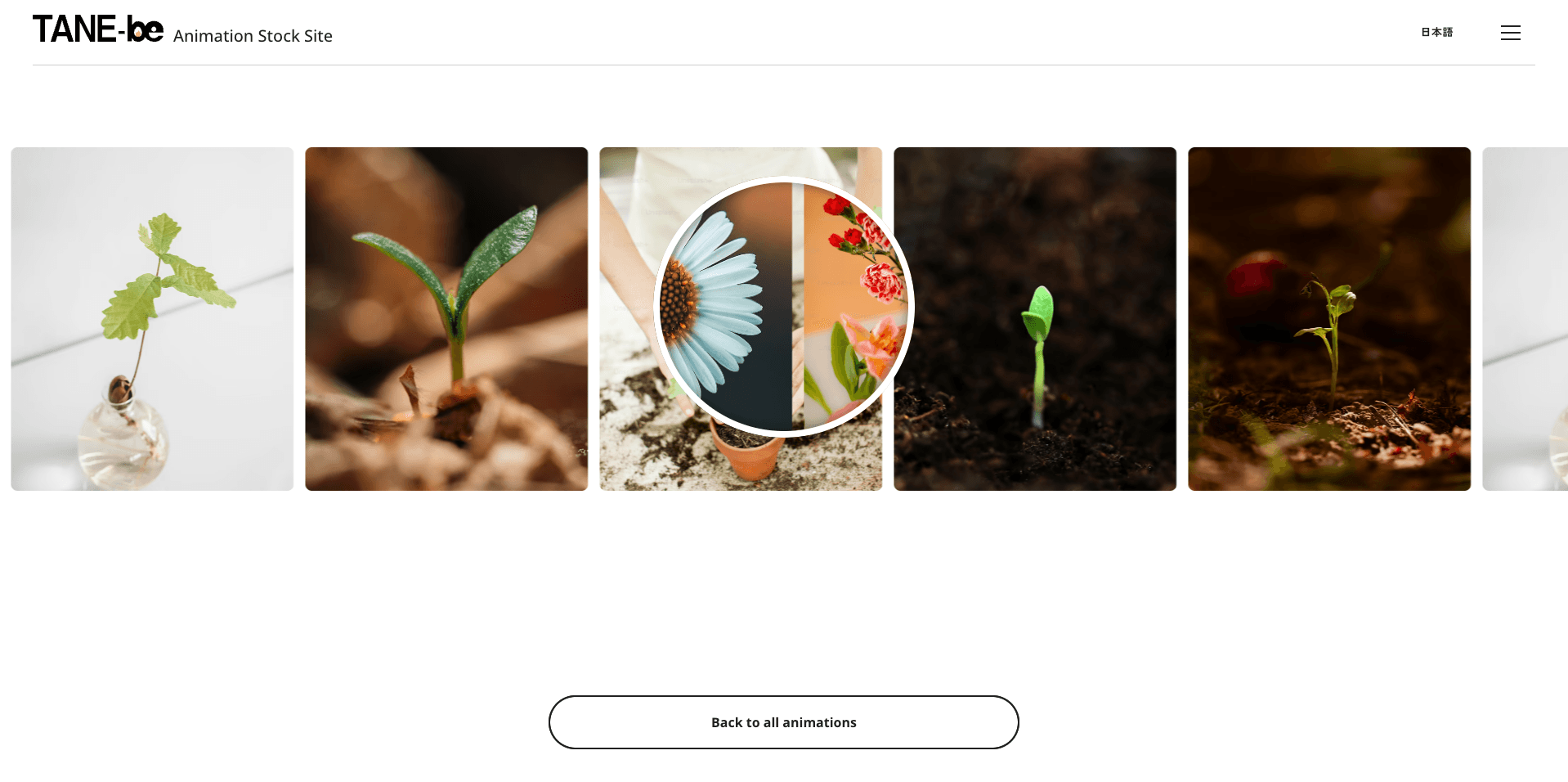
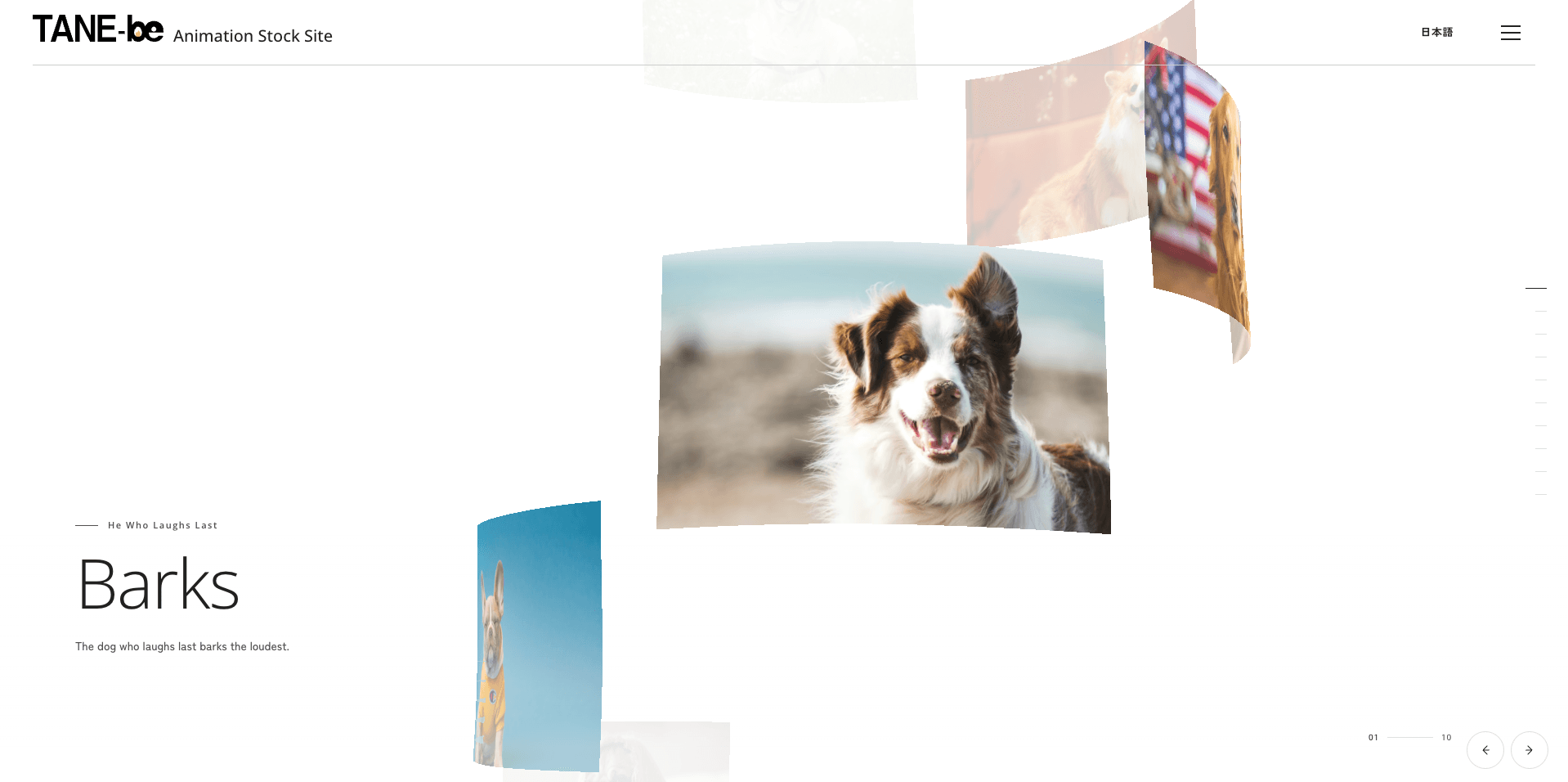
Click an item in the list and the matching image unfolds from the bottom with a clip-path reveal, while the section's heading and body text swap in character by character and line by line. Built with GSAP and SplitText.
- Built with
- Published
Where to use it
- Service or feature lists with visuals
- Case study and project selectors
- Tabbed content with large imagery
How it works
- The new image reveals from the bottom up by animating the top two corners of a clip-path polygon, each on its own timing
- The image inside scales slightly as it reveals for a sense of depth, and the incoming image stacks above the outgoing one
- SplitText splits the heading into characters and the body into lines, each wrapped in a mask
- Heading characters slide up in a stagger, and the body lines follow, overlapping the heading's entrance
- The outgoing text exits upward as the new section enters, so the swap feels continuous
- Clicks during a transition, or on the item that's already active, are ignored to prevent stacked animations
- All timing values live in one settings object at the top of the script for easy tuning
Make it your own
- Shape and timing of the clip-path reveal
- Image zoom amount
- Text stagger and overlap timing
- Number of list items and images
Before you ship
- Mobile & touch
- Below 1024px the layout stacks into one column with a 60%-height image area and 60×80px thumbnails; from 1024px it becomes a full-screen two-column layout with thumbnails up to 100×140px.
- Browser support
- Uses clip-path and GSAP's SplitText plugin. Works in all major modern browsers.
- Performance (load: Medium)
- Images animate with clip-path and transform, and the text animates transform and opacity on the split elements.
- Accessibility
- The headings and body text are plain HTML, but the list items are buttons that contain only images with empty alt text, so they have no accessible names; add labels before shipping.
- Reduced motion
- There's no prefers-reduced-motion branch yet, so the reveal and text animations run as usual; to support it, skip the animations and switch sections instantly.
FAQ
How do I reveal an image with clip-path in GSAP?
Animate a polygon clip-path from a collapsed shape at the bottom to the full rectangle. Giving each corner its own timing makes the reveal feel less mechanical.
How do I animate text by characters and lines?
Use GSAP's SplitText with its mask option so each character or line sits in its own clipping wrapper, then animate yPercent with a stagger.
How do I stop rapid clicks from breaking the animation?
Keep a flag while a transition runs, ignore clicks while it's set, and also ignore clicks on the item that's already active.